FENTY STUDIOS / MOD
ReferencePlanes
Put your references in perspective.
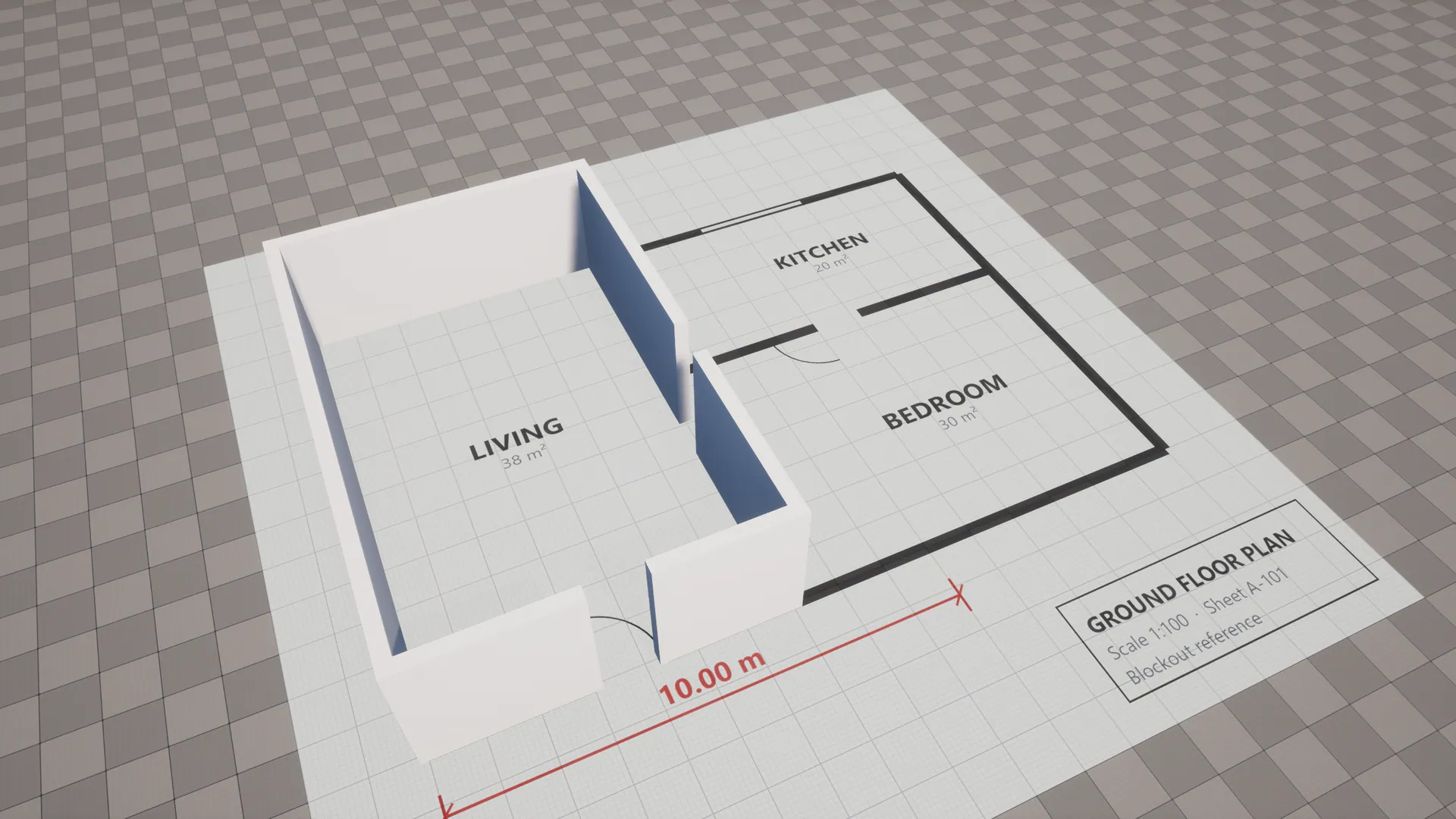
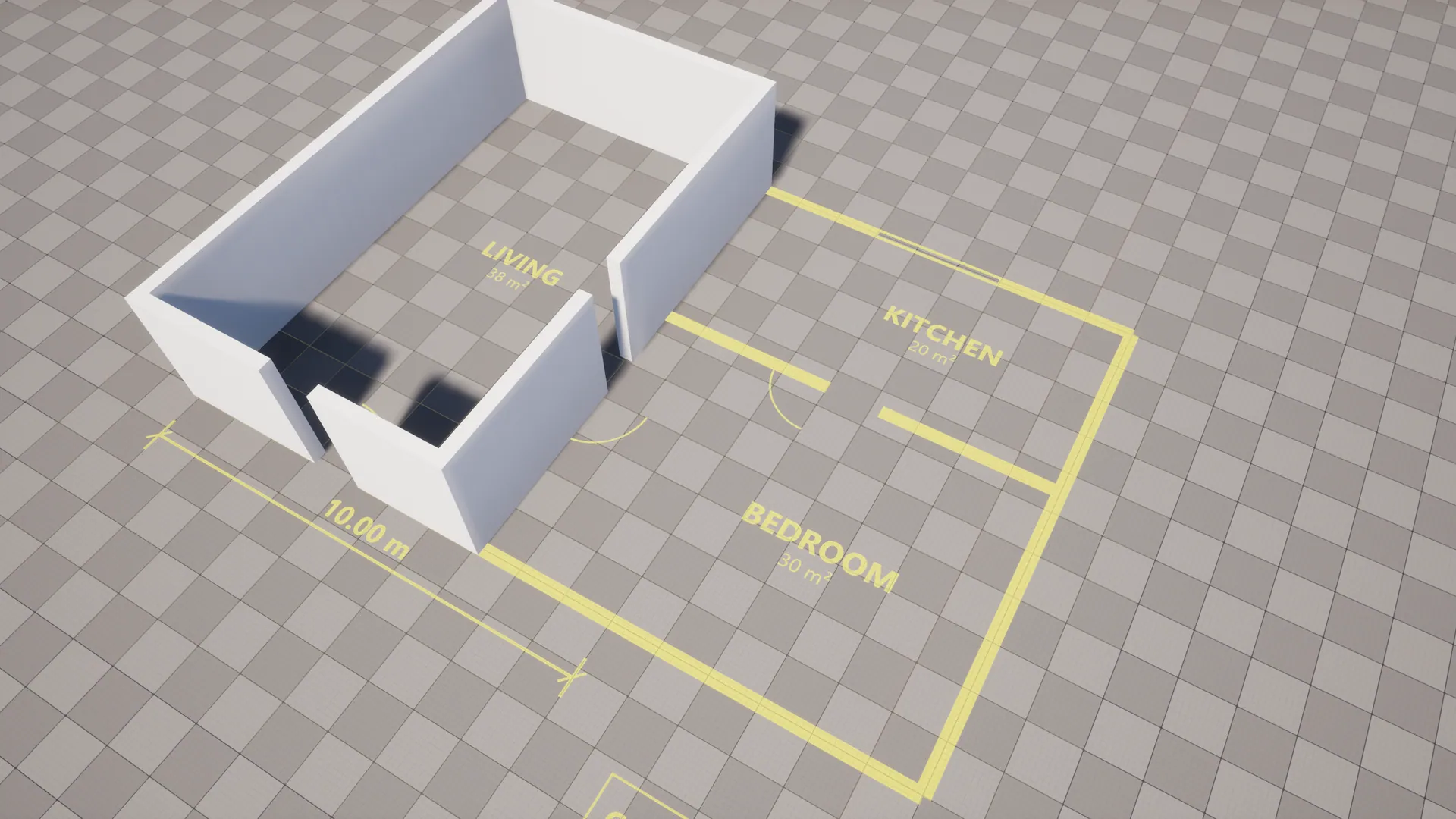
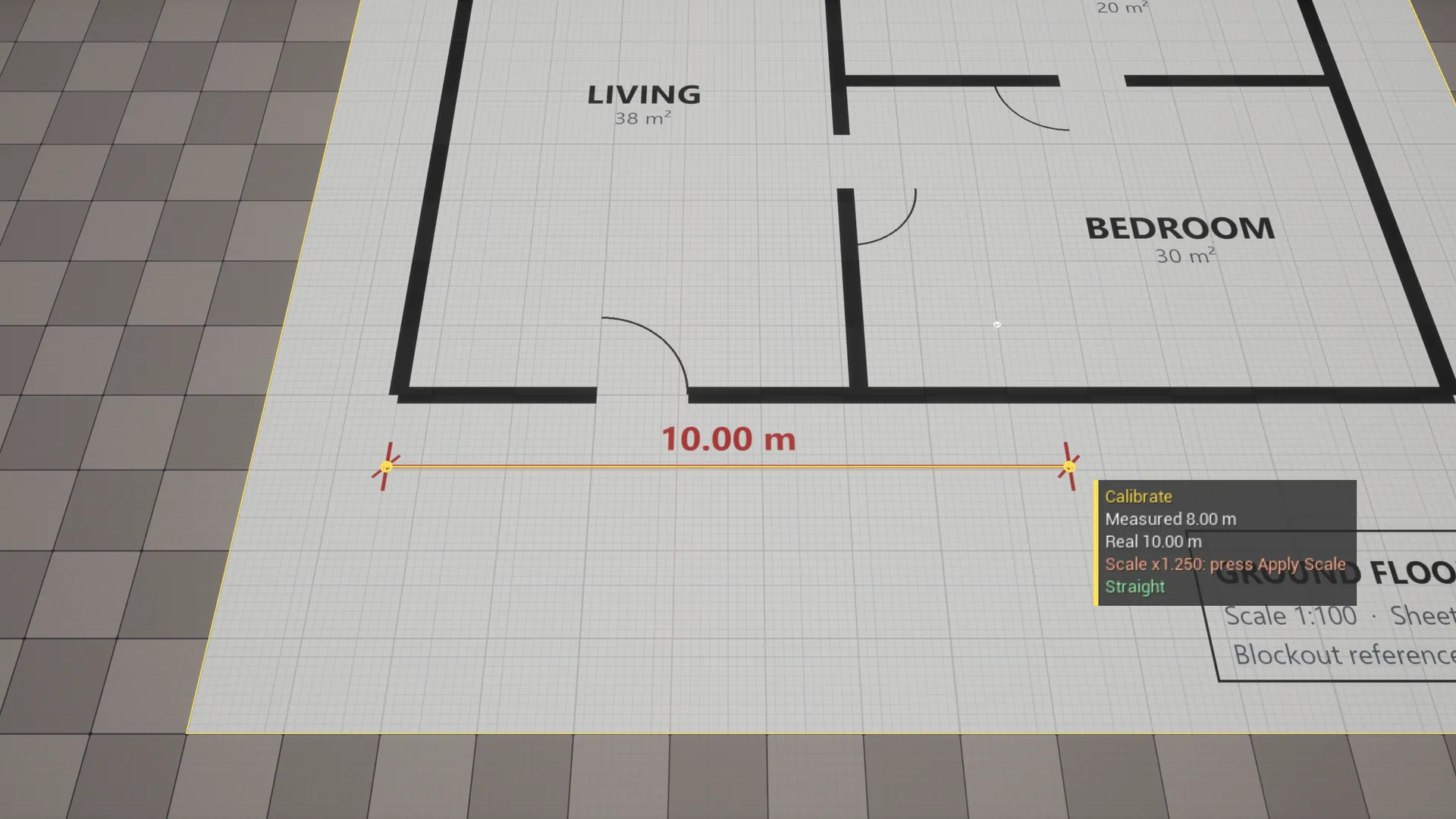
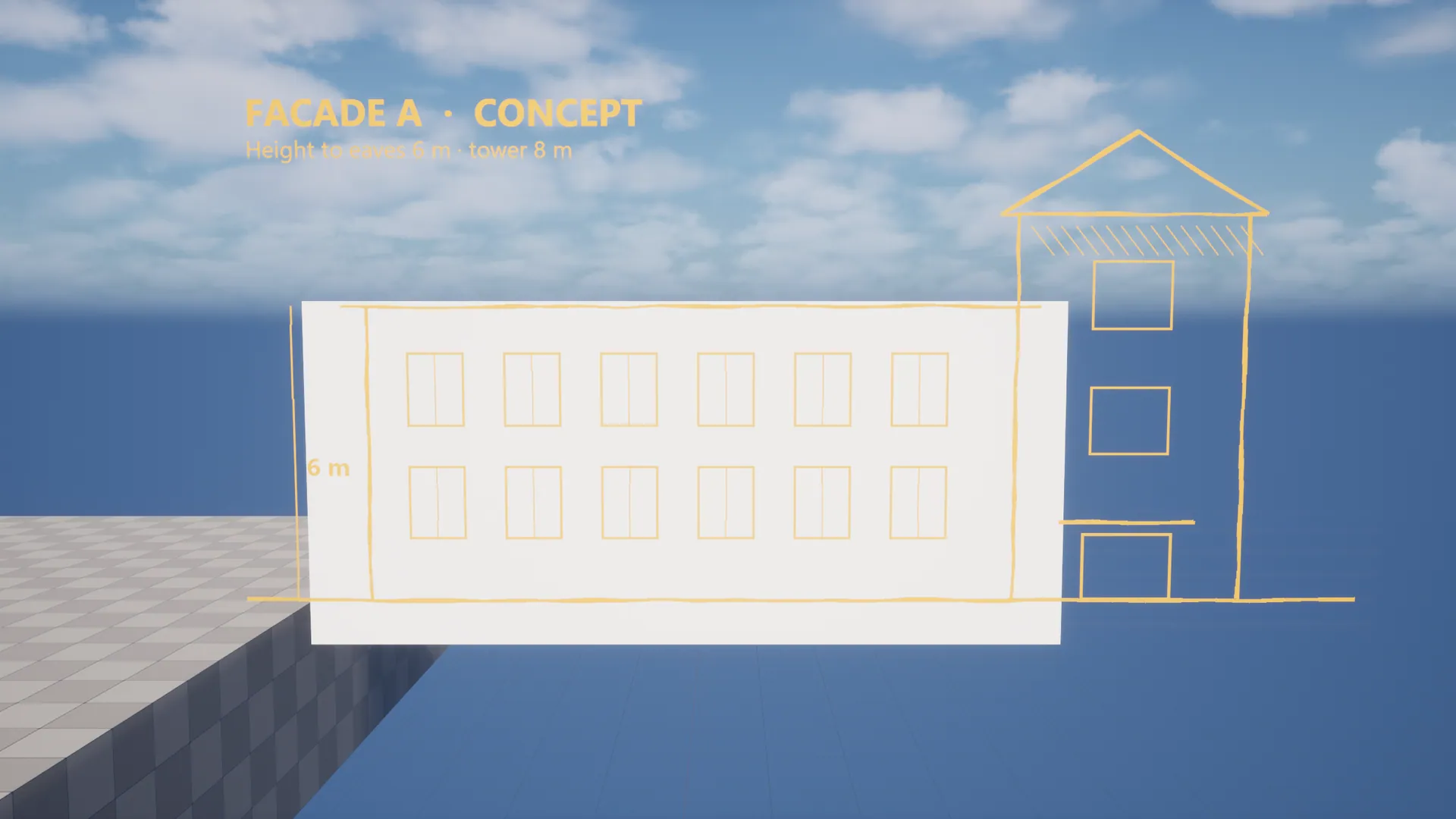
Viewport reference images for Unreal: lay a floor plan or concept sketch into the level with opacity, line mode and draw-on-top, calibrate its scale by clicking two points with a known distance, straighten it, and lock it so it never gets in the way. Editor-only, stripped from cooked builds.
Unreal Engine 5.8.0 ? 1.0.0
Or get all five tools in the Level Design Bundle. Refund policy.

MADE FOR YOUR WORKFLOW
01
Two-click scale calibration
02
Floor plans and concept art
03
Line mode and draw-through
A closer look.
Open an image to view it at full resolution.
User guide
# ReferencePlanes User Guide

## Install
1. Install from Fab, or copy `ReferencePlanes` into your project's `Plugins/` folder.
2. **Edit → Plugins**, enable **ReferencePlanes** and restart.

## Place an image
Use whichever way is quickest:

- **From the Content Browser:** right-click a texture → **Place as Reference Image**. The image is laid on whatever surface is at the center of the viewport. If nothing is there, it stands facing the camera.
- **With the Place tool:** choose **Reference** in the Level Editor's mode dropdown. The Place tool starts with the texture selected in the Content Browser. Pick another **Image**, or use **Import Image...** to bring in a PNG, JPG, TGA, BMP, EXR or PSD from disk. A preview outline follows the cursor; click a floor or wall to place it.
- **From Place Actors:** search for *Reference Image Plane* and drag it in, then set its Image.

On floors the image's top faces away from you. On walls it stands upright. The short tick on the preview outline marks the top edge.

## Plane settings (Details panel)

| Setting | What it does |
|---|---|
| Image | The texture to show |
| Width | Width in world units. Height follows the image's aspect ratio |
| Opacity | 0 is invisible, 1 is solid |
| Tint | Multiplies the image. In Line Mode it is the line color |
| Line Mode | White becomes transparent and dark lines are drawn in Tint. Best for floor plans and line art |
| Show Through Geometry | Draws the image over level geometry, e.g. to trace a facade through a massing block |
| Locked | The plane can't be clicked or moved in the viewport. Select it in the Outliner to change it |

Move, rotate and duplicate planes like any actor. Undo works for everything.

## Calibrate the scale
1. Open the **Reference** mode and choose **Calibrate**.
2. Click two points on the image that are a known distance apart: a dimension line, a door width, or a grid square.
3. Set **Real Distance** in the tool panel. The readout shows the measured distance and the scale factor.
4. Press **Apply Scale**. The first point stays fixed and the image scales around it.

**Straighten** uses the same two points. It rotates the image so the line between them runs along the nearest world axis, which is useful for scanned or photographed plans. The readout shows how far off-axis the line is.

Click again to start a new measurement.

## Housekeeping
The Place tool panel has **Hide All**, **Show All**, **Lock All** and **Unlock All** for every reference plane in the level.

## Preferences
**Edit → Editor Preferences → Plugins → ReferencePlanes**

| Setting | Default |
|---|---|
| Import Folder | `/Game/ReferenceImages` |
| Default Width | 10 m |
| Default Opacity | 0.6 |
| Readout Scale | 1.0 (raise it on 4K or ultrawide monitors) |

## FAQ
**Do reference images end up in my game?** No. Reference Image Planes are editor-only actors and are stripped when cooking. The texture assets themselves are ordinary assets: keep them in a folder you exclude from cooking (or just don't reference them from game content), and they won't be packaged.

**Why doesn't it ship a material?** The plane's material is built in memory by the plugin, so there is nothing to migrate and nothing to break. It works with and without Substrate.

**My image looks washed out in Line Mode.** Line Mode keeps dark pixels. For a light-on-dark drawing, invert it in an image editor first, or turn Line Mode off and use Opacity.

**Can I trace over a plane without selecting it?** Yes: lock it (or use **Lock All**). Clicks then go through to whatever is beneath or above it.
Changelog
# ReferencePlanes Changelog

## 1.0.0
- Initial release for Unreal Engine 5.8.
- Reference Image Plane actor: image, width (aspect-correct), opacity, tint, line mode, show through geometry and lock. Editor-only.
- Reference editor mode with Place and Calibrate tools.
- Two-point scale calibration and straighten.
- Content Browser texture menu: Place as Reference Image.
- Import Image... from disk, plus Hide/Show/Lock/Unlock All.